How to accept M-Pesa support as a creator in Kenya
Set up your receiving number, check the supporter checkout, and know what to do if an M-Pesa prompt stalls.
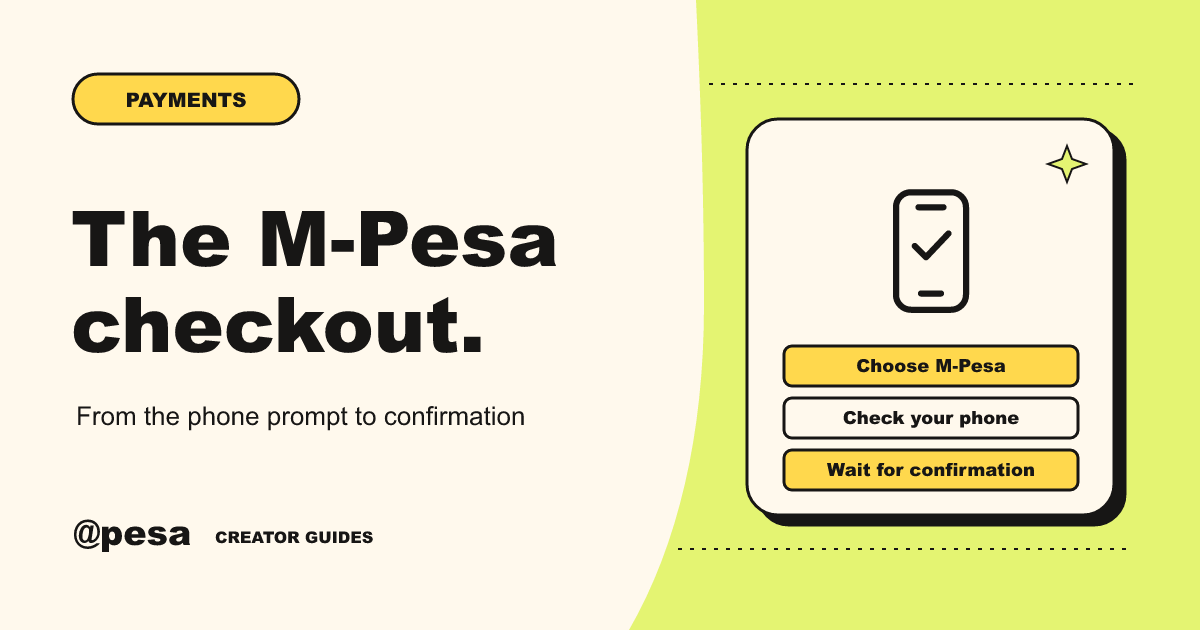
There are two sides to accepting M-Pesa support. As the page owner, you set up where you receive support and check your page is live. As a supporter, the person sending money chooses M-Pesa at checkout and authorises a prompt on their own phone. Keeping those two sides separate makes it easier to set up the page, explain what happens and help someone who is unsure whether they paid.
This guide follows the atpesa page editor, public contribution form and M-Pesa checkout. You can check what a visitor sees without sending money. Use confirmed records to answer questions about actual contributions.
Get the receiving details right before you share
Sign in and open the page editor or the M-Pesa receiving section in your profile. Use the name registered to the receiving M-Pesa number and enter a number you own. The editor shows the status of the receiving setup. Read the status before sharing the page, especially if you submitted details and left the editor while it was still being processed.
Keep the page as a draft while you sort out anything that prevents it from going live. If the receiving setup is unavailable or needs further attention, follow the instruction shown in your account. Enter details only in the signed-in site. There is no reason to include your private receiving number in the story on your public page or to ask a supporter to approve something on your behalf.
If you have more than one support page, check which page you intend to share and whether the receiving setup is current. Changing a link in a social profile does not change account details. If your registered name or number changes, review the receiving information in your account and check its status again. Reach out through atpesa support if you are unsure what a status means instead of repeatedly entering the same details.
Check the page as a visitor
Open your dashboard, use the sharing screen for the right page and copy the public link. Paste it into a private browser window where you are signed out. Check that it opens the page you meant to share, that the owner and purpose are visible, and that the contribution form is readable. Use a phone for at least one pass. People may arrive from a chat app or scan a QR code, so check the route they will actually use if you already know where you are sharing.
The supporter starts by choosing a listed amount or using the custom option. The form shows any minimum that applies. If they wish to keep their name off the public page, the form has an option for anonymous support. Read the wording beside that control before describing it to others. It is a choice about how the contribution is shown publicly.
Advance far enough to see the M-Pesa option and the phone number field. You can stop there without asking the site to send a prompt. If you offer help to someone at an event, let them fill in their own details and control their own phone. A clear link and a short explanation are usually all you need to give them.
What the person sending money does
The supporter chooses M-Pesa, enters the number that should receive the prompt and continues. The checkout gives them a status while it waits for the response. Ask them to read the information on the phone prompt and approve only the payment they just started. They enter their M-Pesa PIN on their device as part of that prompt. They should never send it in a chat, read it out to you or enter it into a form someone shared outside the payment flow.
If the prompt arrives on a different device from the one showing the support page, the person can keep the page open while they check their phone. After approving, let the checkout update. The fact that a prompt arrived is not confirmation that the contribution completed. The page can still show that the payment is pending while it waits for verification.
Be especially careful about advice in a busy group chat. If someone posts that they are waiting, ask them to check the current status on their own device. Do not ask them to put their phone number, balance or a screenshot of their messages in the group. If they need help from atpesa, use the support channel shown on the site so they can share the relevant information privately.
If the checkout stalls or the prompt does not arrive
Have the supporter check the number they entered and the phone that should receive the request. Ask them to make sure they are looking at the prompt from their own checkout. If they cancelled or missed it, wait for the site to tell them what happened before starting again. An open checkout can still show a pending status even if they have not yet seen the prompt. Read the message on screen instead of guessing from the number of seconds that have passed.
If someone says money has already left their account, ask them to hold off on sending again while they check the original transaction. The supporter can look for their M-Pesa confirmation and the page owner can check for a confirmed contribution in the dashboard. If the records disagree or the payment still cannot be identified, contact support. Give the page link, the approximate time and a reference if there is one. A PIN or one-time code is never needed to investigate the report.
Treat a genuine payment issue and a suspicious message separately. If an unsolicited caller asks for a PIN, tells the supporter to approve a prompt they did not request, or sends an unknown link for a supposed reversal, stop and use Safaricom’s published guidance or official support channels. If someone received a real prompt they started themselves but the website still says pending, use the page’s support channel to check the original record.
Keep your instructions current
If you already told people how to send support, check the original post whenever checkout or your page changes. A stale screenshot can lead a person to look for a control that is no longer there. A written link and a brief description of the current step are easier to maintain. Make sure any screenshot you do share comes from the public view and contains no phone number or payment reference.
Keep a simple routine once the link is live
Before posting the link in a new place, open it and verify the title. If you send people to it from a printout, scan that printout after any link change. If you are managing the page on behalf of a group, agree who will check the dashboard and who will handle questions, and keep access to the receiving account with its owner.
A good explanation of M-Pesa support fits in a few lines. Tell people where to open your page, that they can select M-Pesa at checkout and that they should check the request on their own phone. Give them a way to ask for help if the status does not make sense. You do not have to know how every phone will behave. You do need to be clear about what you can verify and protect the information people should keep to themselves.