Where to put your support link on YouTube
Give viewers a clear route from a channel profile, long video or Short to your support page.
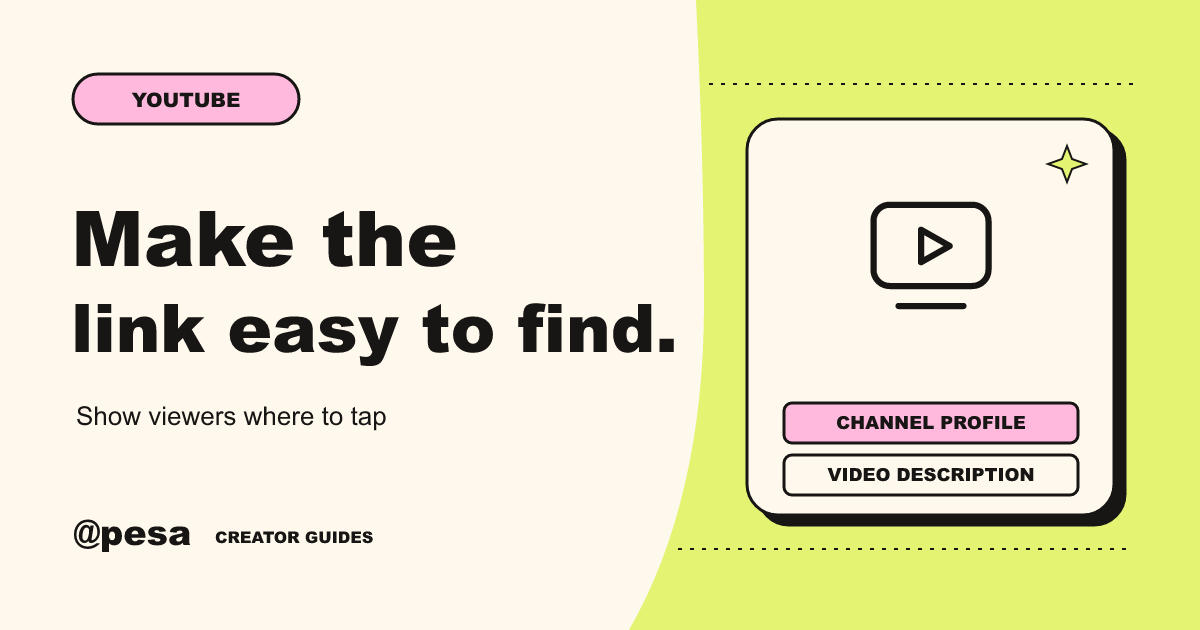
Set up a link on your channel profile first. Then decide how viewers will find it from a long video and from a Short. Those two formats have different rules. According to YouTube’s help pages, external addresses in Shorts descriptions and comments are not clickable. In long-form descriptions and comments, clickable external links require access to advanced features. Check the route from a viewer’s phone even if the address looks right in YouTube Studio.
One recognisable label can tie all three places together. Use a label you can say aloud and that tells the viewer where the link goes. Give people an idea of what the support will help you do before asking them to leave the video.
Set up the link on your channel profile
On a computer, sign in to YouTube Studio and open Customisation, then Profile. In the Links section, add your public support page address and give it a title. Publish the profile changes. YouTube says the first link is displayed prominently on the profile, with other links available from the channel. If supporting your work is the main action you want people to find, consider putting it first. Leave an important existing link first if people already depend on it, and tell viewers the label to look for.
Check the finished profile in a browser where you are not signed in as the channel owner. Use the public link from your dashboard’s share screen, not the editor address. When you tap it, the support page should be recognisable as yours without the viewer having to piece together two different names. If you use a channel name and a different name on the page, connect them in the introduction.
Keep the label consistent as long as published videos still mention it. If the purpose of your page changes, update the page and the links you can edit. Make the change clear to someone arriving from an older video. When a project has ended, do not silently send a viewer to an unrelated request that still uses the same label.
Add a clear route from a long video
Edit the description of a relevant long-form video. Give the support link a line of its own, near the top where practical. The opening should still tell people what the video contains. A line below that can name what support helps you do and give the link. There is no need to paste a long explanation into every description if the public page covers it clearly.
Check that your channel can share clickable external links. YouTube documents advanced features as a requirement for external links in long-form video descriptions and comments. If the link is not clickable in the published video, read the feature eligibility guidance in Studio. In the meantime, tell viewers to use the channel profile only after confirming that route works. An address printed in a description can look like a link to you when it is not a link to the viewer.
If you mention the request in the video, tell people where you put it. Match your spoken instructions to the published description. The viewer may have the sound off, so add a short on-screen label or captions for the relevant line if it fits. A pinned comment can be another route if available, but check that it is visible and clickable as a viewer. Do not rely on the comment as the only place for the link.
Give Shorts viewers a path they can tap
YouTube’s link-sharing guide says URLs in Shorts comments and descriptions are not clickable. Point viewers to the link on your channel profile or use the related-video feature when you have access. A short instruction on screen can name the profile and the label. Keep it visible for long enough to read. If the video is busy or the text competes with captions, use one clean line near the end.
A related video is useful when there is a natural next watch. YouTube Studio lets eligible channels attach a video from their own channel to a Short. Follow the related-video guide and confirm that the link appears in the player. If the related video is where people will find the support link, put it in that video’s description and test the route all the way through. The related-video link points to YouTube content, so a viewer still has a second step before reaching the support page.
Do not assume one route is better for every clip. If a Short explains enough by itself, pointing to the profile may be simpler. If the Short is an extract and the full video tells the story, the extra watch can give people useful context. Say which step you are asking for and make sure the destination fits it.
Make the page answer the question the video raised
Look at the last video where you want to mention support. Write down what a viewer already knows from watching it and what they need to learn on the page. If the video already shows the work, the page can briefly identify it and explain the next step. If the video only introduces you, include a link to something the visitor can see and describe what the contribution would help with.
Use a detail you have checked, and date a time-sensitive request. If you have not booked or agreed something yet, write it as a plan. Keep a copy of the wording you publish so you can see what viewers from that video were told. This matters when your link stays in a description long after you recorded the video.
Check older videos before changing your link
Use YouTube Studio to find older videos that still bring people to the channel. Start with any where you gave a specific spoken instruction. You can edit the description after publication, but the old words still appear in the video. If you rename or remove the profile link, add an explanation near the top of those descriptions. Keep the new route short enough for a person who arrives from an older upload to follow.
If two links lead to different projects, label both with the work they refer to. Retire old calls to action when you can. Fix a few videos people still watch before working through the rest of the archive.
Test the links where viewers will find them
Start on a phone with the description collapsed. Tap through from a long video, from the profile and from one Short. Open each page the way a viewer would rather than using Studio previews. Ask a second person to follow the instructions without showing them where to tap. If they get lost, note the first wrong turn. You can fix an unclear label or missing link before changing the whole request.
After publishing, keep track of questions about the link separately from questions about what support is for. You can also check visits or confirmed contributions if you already have those records. Do not use either number by itself to guess why someone gave. Fix the profile and one relevant video first, then use the same tested path on your next upload. That is enough to give viewers a route that works without editing your whole archive.